See where yourWiFi dies.
Walk your home once with your iPhone. Watch every room light up green where your WiFi works, and red where it gives up.
Walk once.
See every room.
WiFi Heatmap turns guessing
into a map of your home.
Not a number. Not a bar. A place you can walk to and point at.
every wall.
always buffers.
WiFi Heatmap
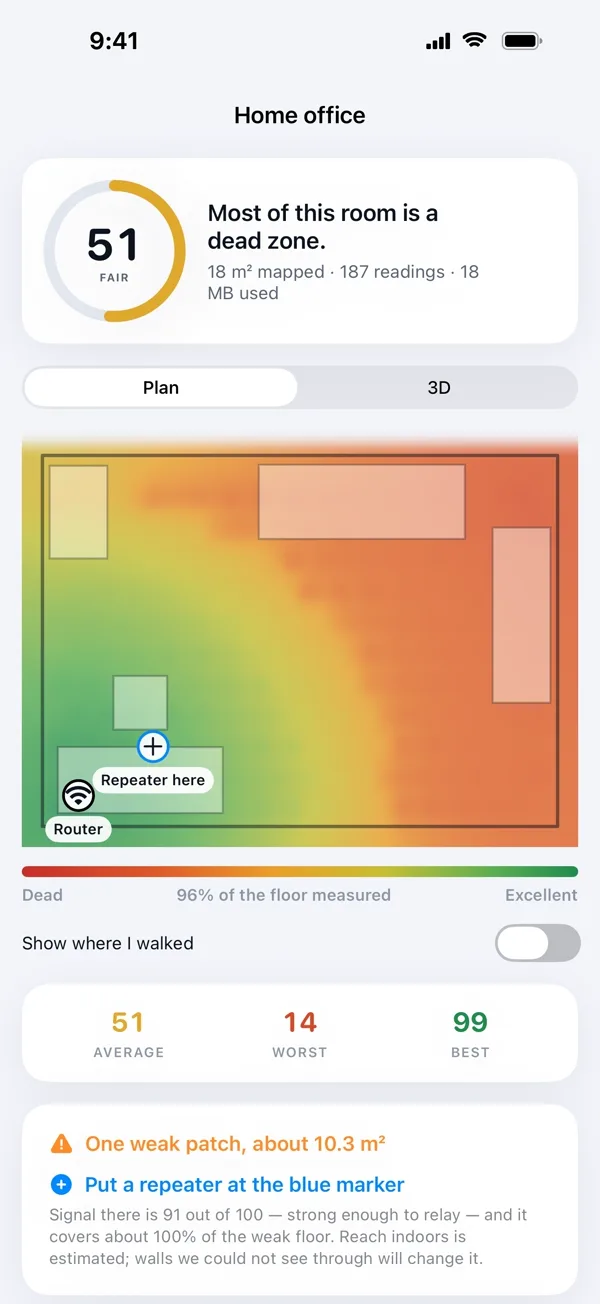
Your rooms, drawn from your own walls, with your signal painted across them. Spin it in 3D and see exactly where it runs out.
Explore featuresCalls that
stop dropping.
Find the corner where every call freezes, then fix it.
 WiFi Heatmap
Every call,
every room.
WiFi Heatmap
Less buffering.
More living.
WiFi HeatmapHand your landlord
the proof.
A clear report your provider can read without you explaining a thing.
WiFi Heatmap
The bedroom that always buffers isn't in your head. Walk your home once and see the exact spot where your WiFi gives up.
Point your iPhone at the walls and walk through. The floor plan builds as you go.
From one walk,
to a fixed home.
Four steps, about ten minutes, and you know exactly what to change.
Walk
Point your iPhone at the walls and walk through each room.
Map
Your floor plan draws itself, with the signal laid on top.
Find
The exact spot where it dies is marked on the floor.
Fix
See where a booster goes, and how much dead space it rescues.
Drag the router.
Watch the dead zones move.
A quick simulation of how walls eat your signal. The app measures your real home.

One map.
Every room.
Know which seat on the sofa gets the best signal before movie night.

Questions, answered.
How do I find WiFi dead zones in my home?+
Walk through your home with WiFi Heatmap on your iPhone or iPad. It draws your rooms from your walls and paints your WiFi across them: green where it is strong, red where it dies. The red patches are your dead zones.
Where should I put a WiFi extender or booster?+
WiFi Heatmap marks the spot where your signal gives up and shows where a booster would go, plus how much of the dead space it would rescue.
Do I need an account?+
No. There is no account and no sign-up. Every scan and reading stays on your device and nothing about your home is uploaded.
Which iPhones can scan rooms?+
Room capture uses the LiDAR scanner, which Apple fits to Pro models: iPhone 12 Pro and later, and LiDAR iPads.
Can I show the results to my landlord or provider?+
Yes. You get a report you can hand over without explaining a thing.
How much does it cost?+
Download it from the App Store. Yearly and one-time Lifetime options are shown in the app, with your local price, before you buy.
Find your dead zone
tonight.
